












Support & FAQs
Your Vulcan Radar includes a printed setup leaflet. Use this page for common questions, troubleshooting, and how to contact us.
Email: [email protected]
Quick setup
- Plug in USB-C power.
- On the screen, choose your Wi‑Fi network and enter the password.
- Set your location (place name, postcode, or international latitude/longitude coordinates).
- Use the front dial to choose a range from 10 to 200 nautical miles (NM) and watch nearby flights.
Frequently asked questions
What is a desktop radar?
A desktop radar is dedicated desk hardware that shows nearby aircraft on a radar-style display you leave running. Vulcan Radar is a UK-made desktop aircraft radar: a 5-inch colour screen, tactile range control, and live aircraft over Wi‑Fi. It does not emit radar pulses and is not for navigation or ATC.
How do I open Settings?
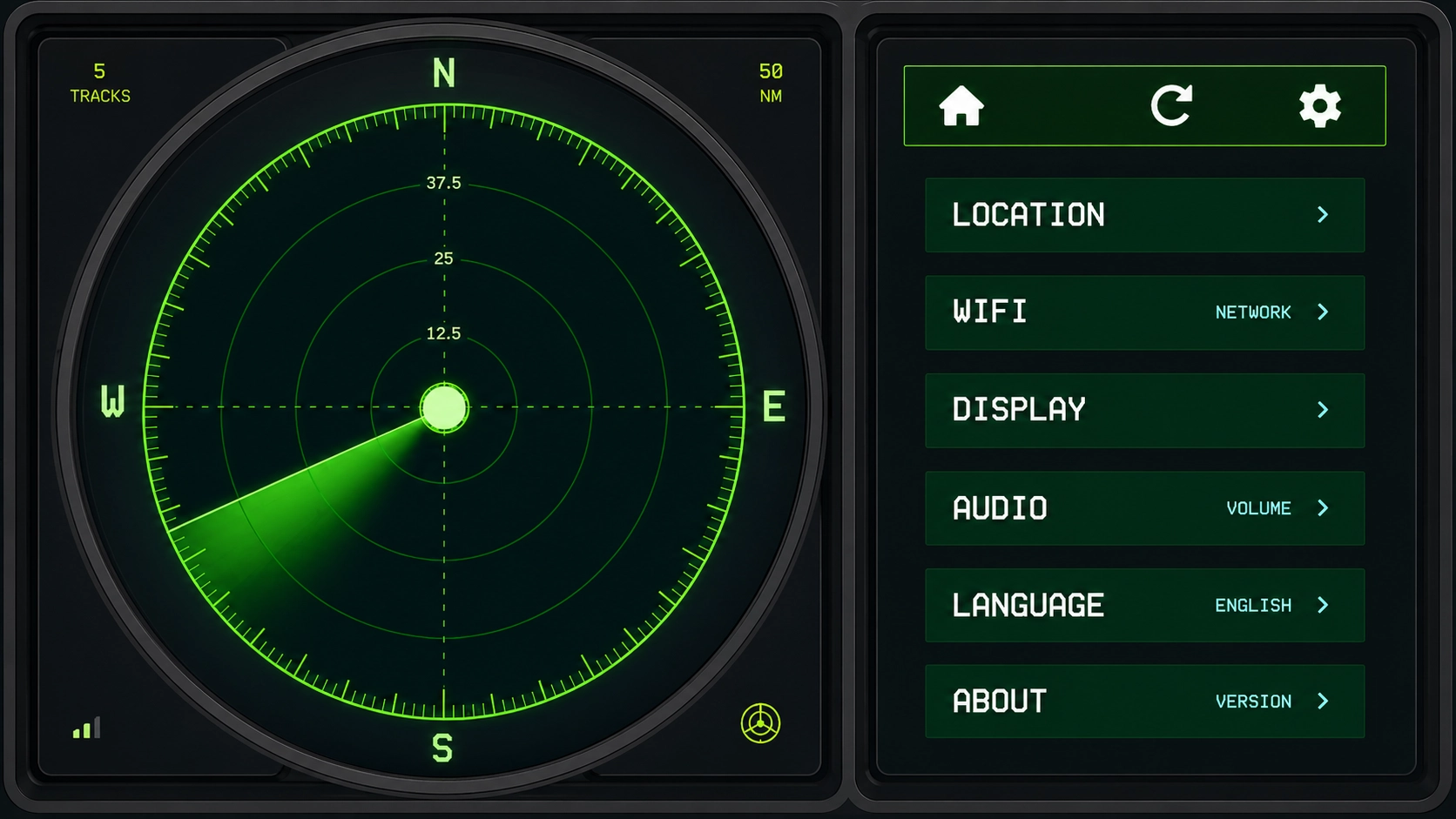
On the side panel, tap the gear icon. From Settings you can open Location, Wi‑Fi, Display, Audio, Language, and About.
How do I set up Wi‑Fi?
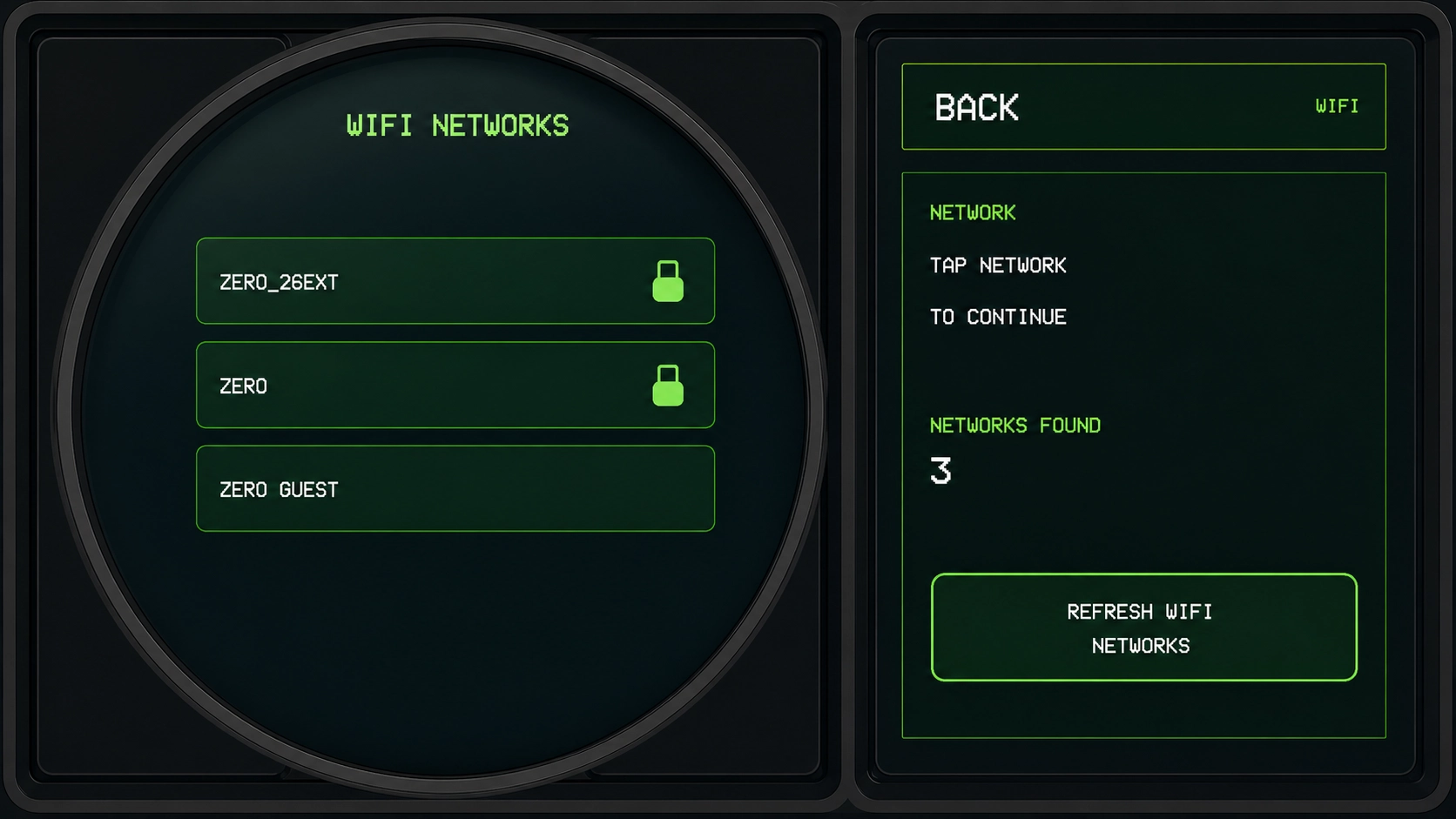
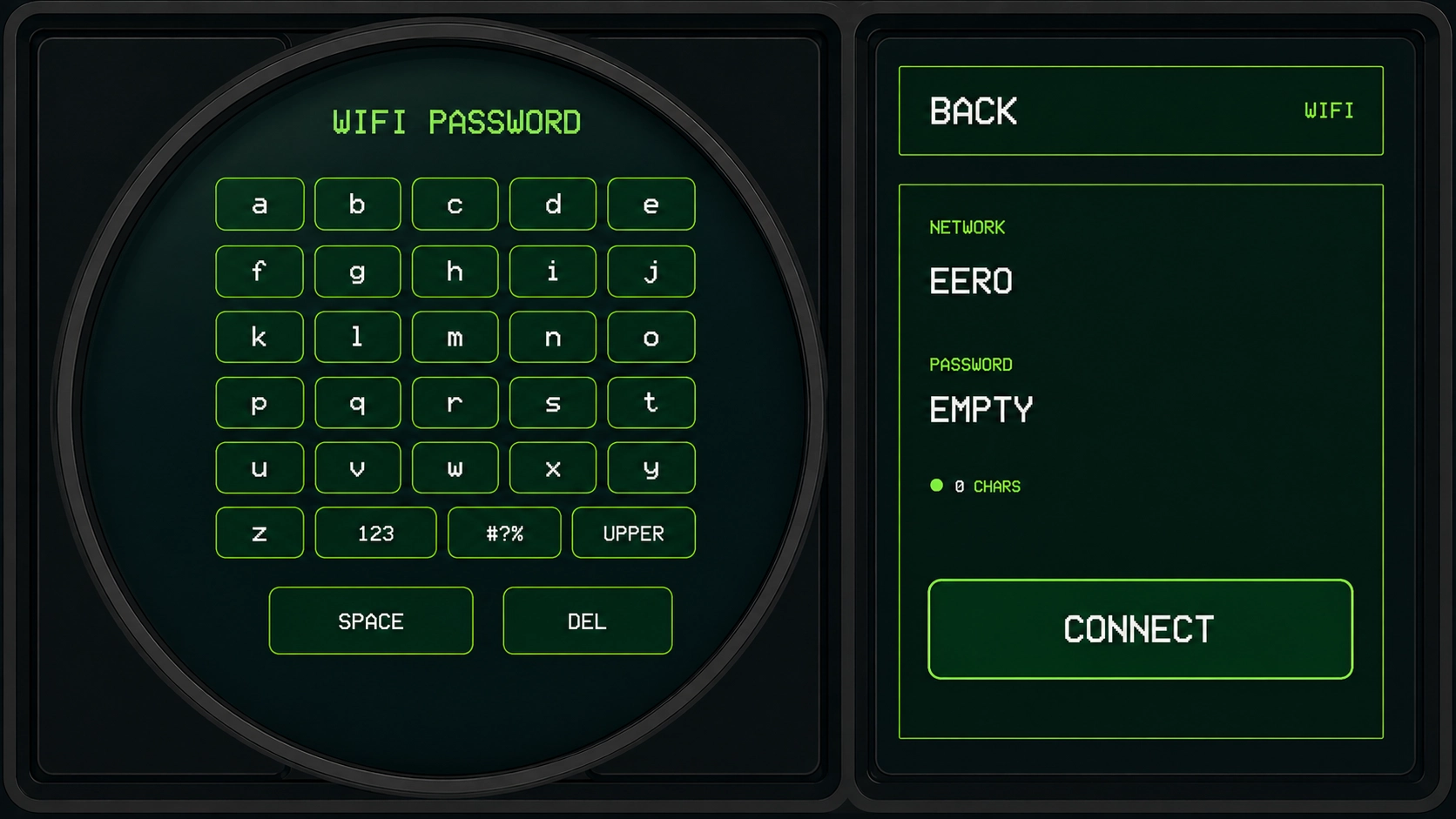
Open Settings → Wi‑Fi. Tap your network in the list (use Refresh Wi‑Fi Networks if it is missing). Enter the password on the on-screen keyboard — use 123, #?%, and UPPER for numbers, symbols, and capitals — then tap Connect.
How do I set my location?
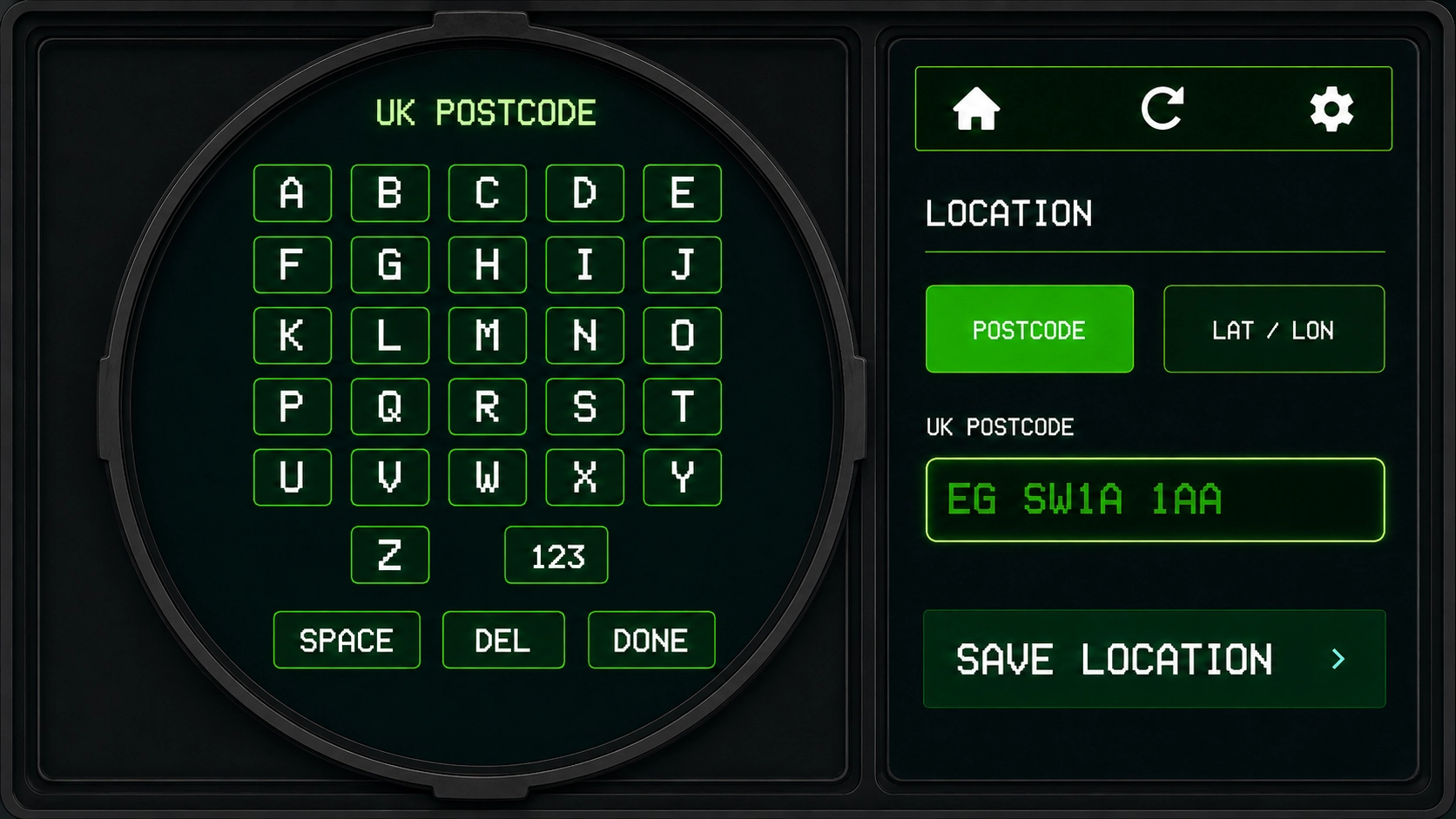
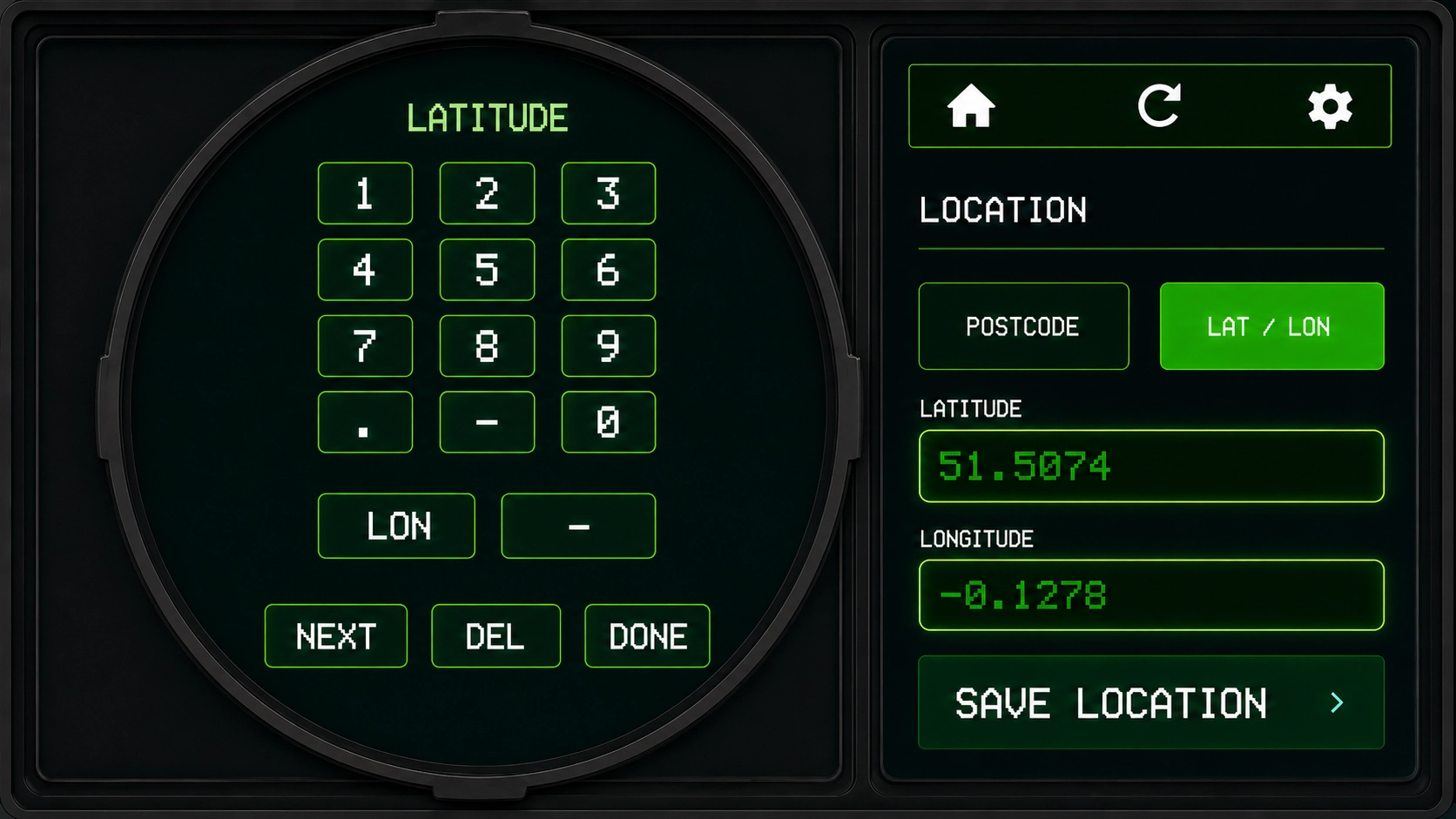
Open Settings → Location. Choose Search, type a place name or postcode on the keypad, then tap Save Location. If several places match, pick one from the list. Or choose Lat / Lon, enter latitude and longitude (use LON on the keypad to switch fields), then tap Save Location.
How do I change language?
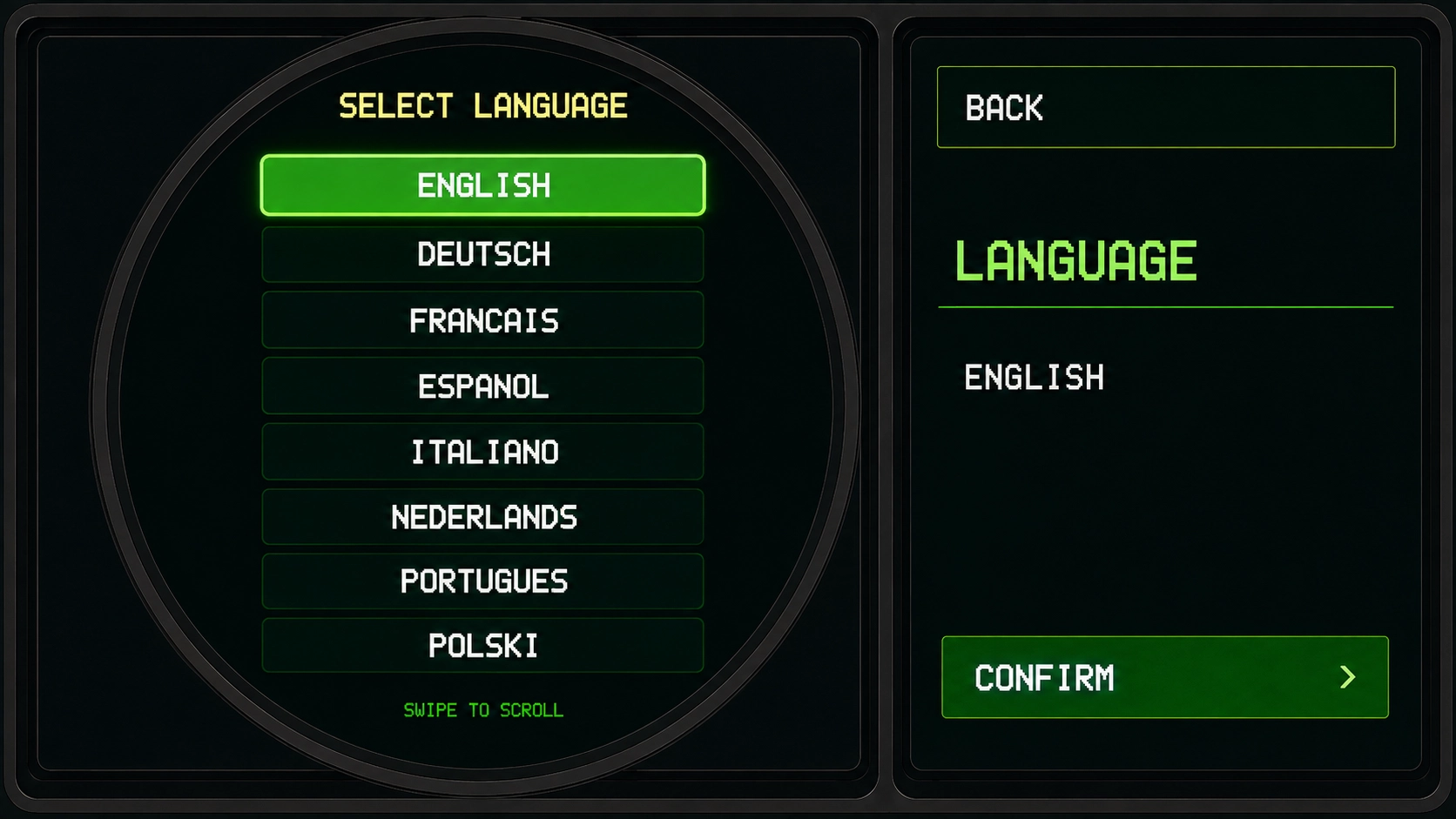
Open Settings → Language. Swipe to scroll the list, tap your language, then tap Confirm.
How do I change display settings?
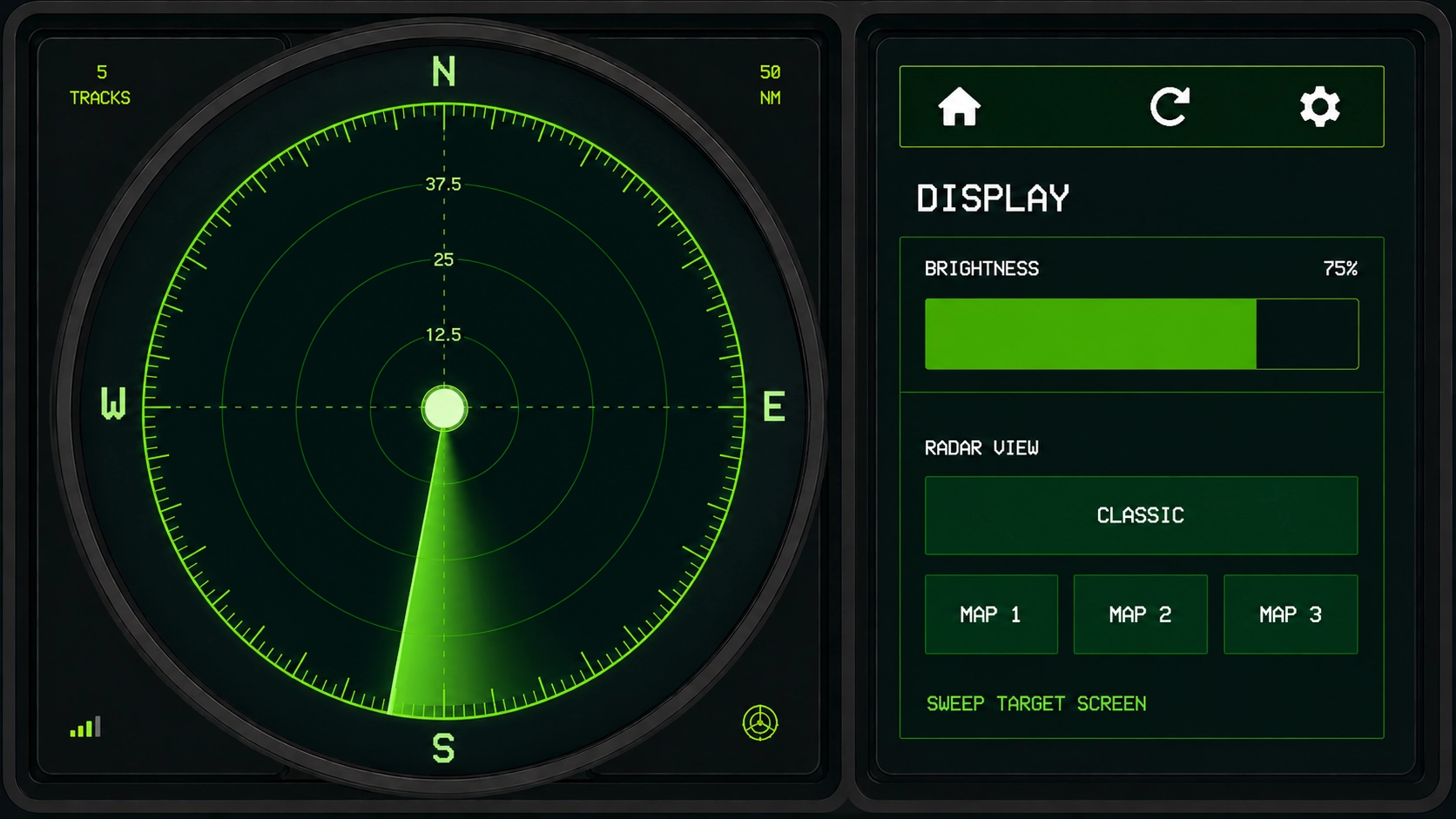
Open Settings → Display. Drag the Brightness control, and choose Classic or Map 1 / Map 2 / Map 3 for the radar view. On a map view, tap Weather to overlay live precipitation on the map, under the aircraft. Weather refreshes in the background every couple of minutes.
How do I adjust audio?
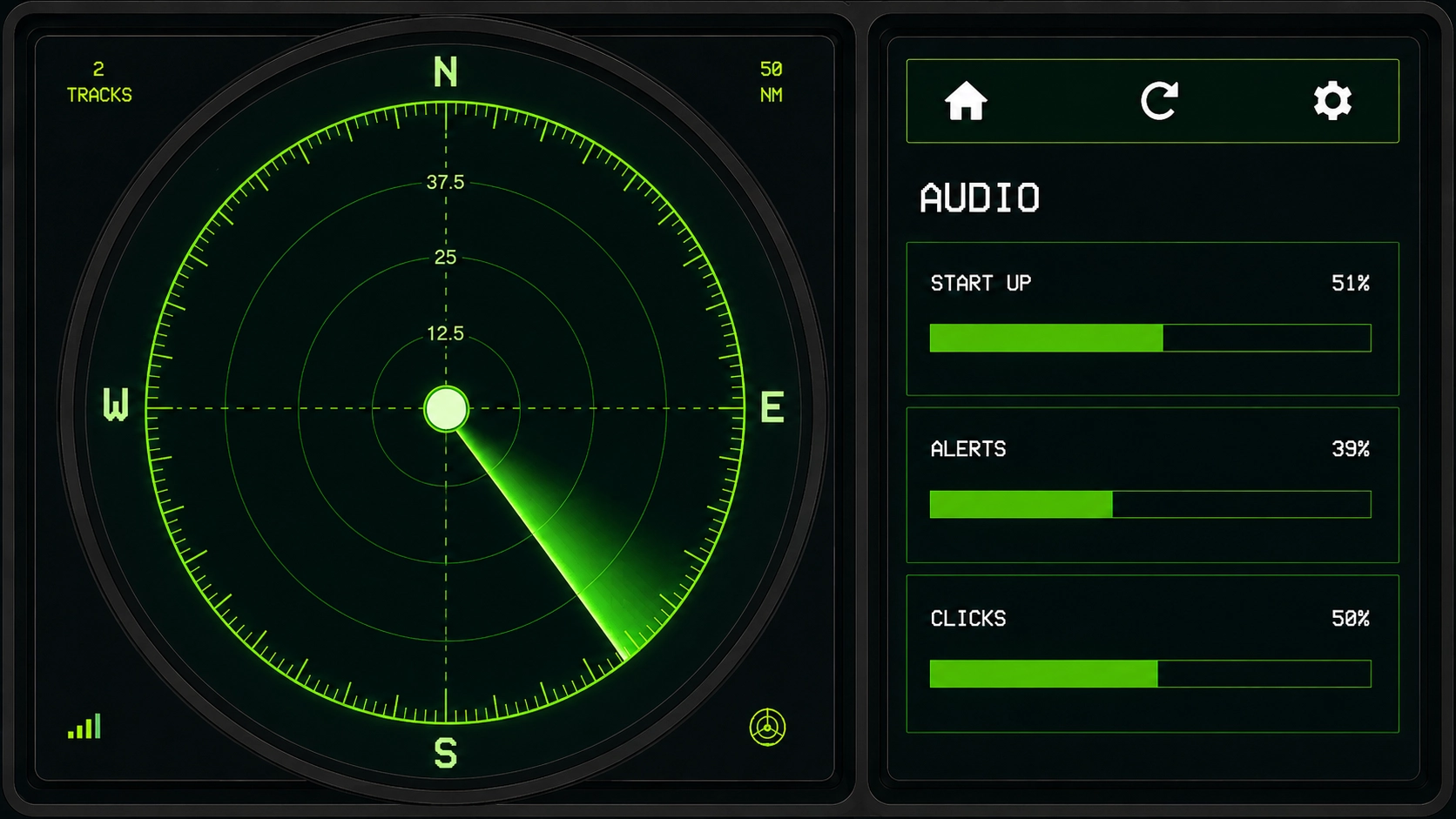
Open Settings → Audio. Use the sliders to set Start Up, New Aircraft Alerts, Clicks, and Squawk Emergency Alerts independently.
How do I enable or disable squawk emergency alerts?
Open Settings → Audio. Tap the SQUAWK ALERT chip to turn the feature on or off. Use the Squawk Emergency Alerts slider for volume (0% is mute). Tap TEST to hear a sample. When the feature is on, the radar alerts if an aircraft transmits 7500, 7600, or 7700. This is optional — you can leave it off.
How do I follow and unfollow an aircraft?
Double-tap an aircraft on the radar to follow it. The map stays where it is until that flight reaches the edge of the dish, then the view recentres on it so it stays on screen. The right-hand panel briefly shows a following message. Tap any aircraft once to stop following. To find a flight by callsign, tap the search icon (next to refresh) and type at least three characters — then tap a result to jump the map to that aircraft. Back returns you to your original location. For a squawk emergency alert, tap Follow on the alert — that also jumps to the aircraft straight away.
How do I check my firmware version?
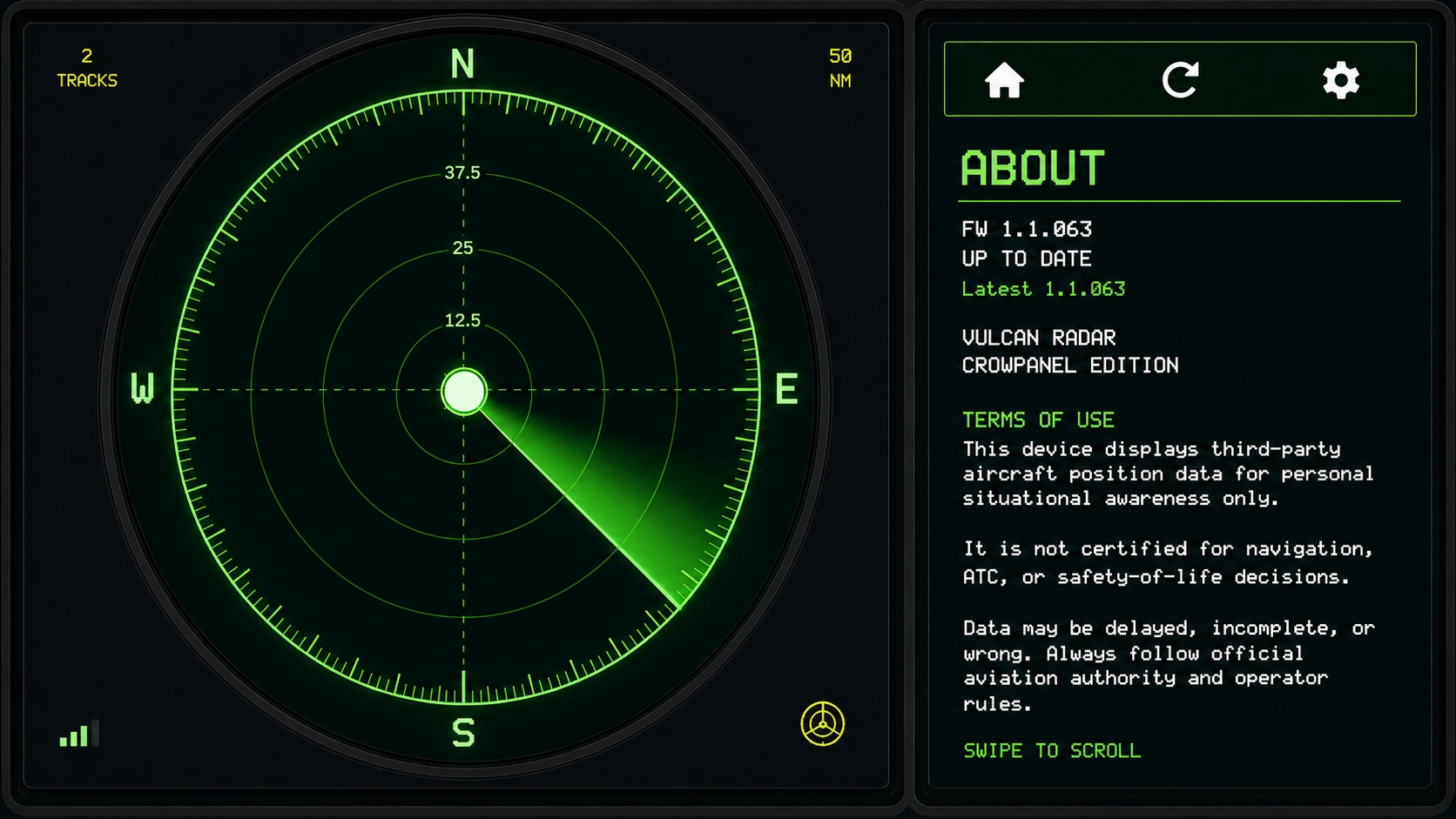
Open Settings → About. The screen shows your firmware version and whether the unit is up to date. Swipe to scroll for Terms of Use.
No aircraft are showing
Confirm Wi‑Fi is connected (Settings → Wi‑Fi), your location is saved, and the unit can reach the internet. Sparse areas or temporary feed delays can leave the display quiet — try a wider range. If the status shows offline, power-cycle and re-check Wi‑Fi.
Map underlay is slow after changing range
Map tiles are fetched on demand when you change range or map style. A brief loading state is normal; classic sweep mode remains available if you prefer not to wait for maps.
Wi‑Fi setup will not complete
Use Settings → Wi‑Fi on the device to pick your network and enter the password on screen. Check the password carefully and keep the unit close to the router during setup. If you are stuck, email [email protected] with a photo of the screen.
Is this safe for navigation?
No. Vulcan Radar is for personal situational awareness and desk display only. Never use it for navigation, ATC, or safety-of-life decisions. Always follow official aviation authority and operator rules.
Firmware updates
When an update is available, the device can offer an on-screen install. Keep the unit powered during the update and do not unplug until it reboots. Automatic updates are disabled by default until you confirm an update on the device.
Warranty & returns
Launch units include a 12-month warranty and 30-day returns for change-of-mind purchases of new, unopened items, unless your order confirmation says otherwise. Defective goods are covered separately. See the Returns section on our Terms page, or contact [email protected] with your order reference.
How do I create my aircraft collection?
Create a free account on vulcan-radar.com, pair your radar with the code shown under Settings → Pair Account, then tap an aircraft and tap COLLECT. Full pairing and collecting steps, with screenshots, are on the Plane spotters page.
Privacy
See our Privacy Policy for what device and account data we store. Legal terms are in Terms of Use.
Still stuck?
Email [email protected] with your approximate firmware version (Settings → About), what you see on screen, and the steps that led to the issue.
Send a message
Use the contact form and we will reply by email.